
- Home
- >
- MyMentone Support Hub
MyMentone Support Hub
Welcome to the MyMentone parent app.
This support hub is here to provide you with everything you need to get started, information about key features, and how to make the most out of your app experience.
How to get started
STEP 1: Search for “MyMentone” on the App Store or Google Play to download and install the app. Alternatively, tap the appropriate button below using your mobile device:
STEP 2: Sign in using your existing Parent Code or linked social credentials.
STEP 3: When you first use some app features, you may be asked to allow access to your information from other secure School sources (e.g. Parent Lounge). Please click ‘Allow’ to enable this access and ensure a seamless experience.
STEP 4: Start exploring your new app!
Key features
-
 General communications including whole school, year level and class/mentor (home group) notices and announcements.
-
 The Parent Hub website is a central place to easily access key information across the School, including resources, important dates and guidance.
-
 Easily manage student absences through a simple and intuitive interface (for all school absences including Saturday sport).
-
 Access information about student progress.
-
 Quick access to schedules and participant lists for your child's sport (Years 7 – 12) and S.M.A.R.T. Program (Years 8 – 12) activities.
-
 Lunch orders for students from ELC to Year 8 can be placed online via Flexischools.
-
 Parent Lounge is now at your fingertips, providing seamless access to essential information.
-
 The MG Active app makes it much easier to manage student fitness gym bookings.
-
 Never miss an event with our comprehensive calendar. View and share upcoming School events directly from your device.
-
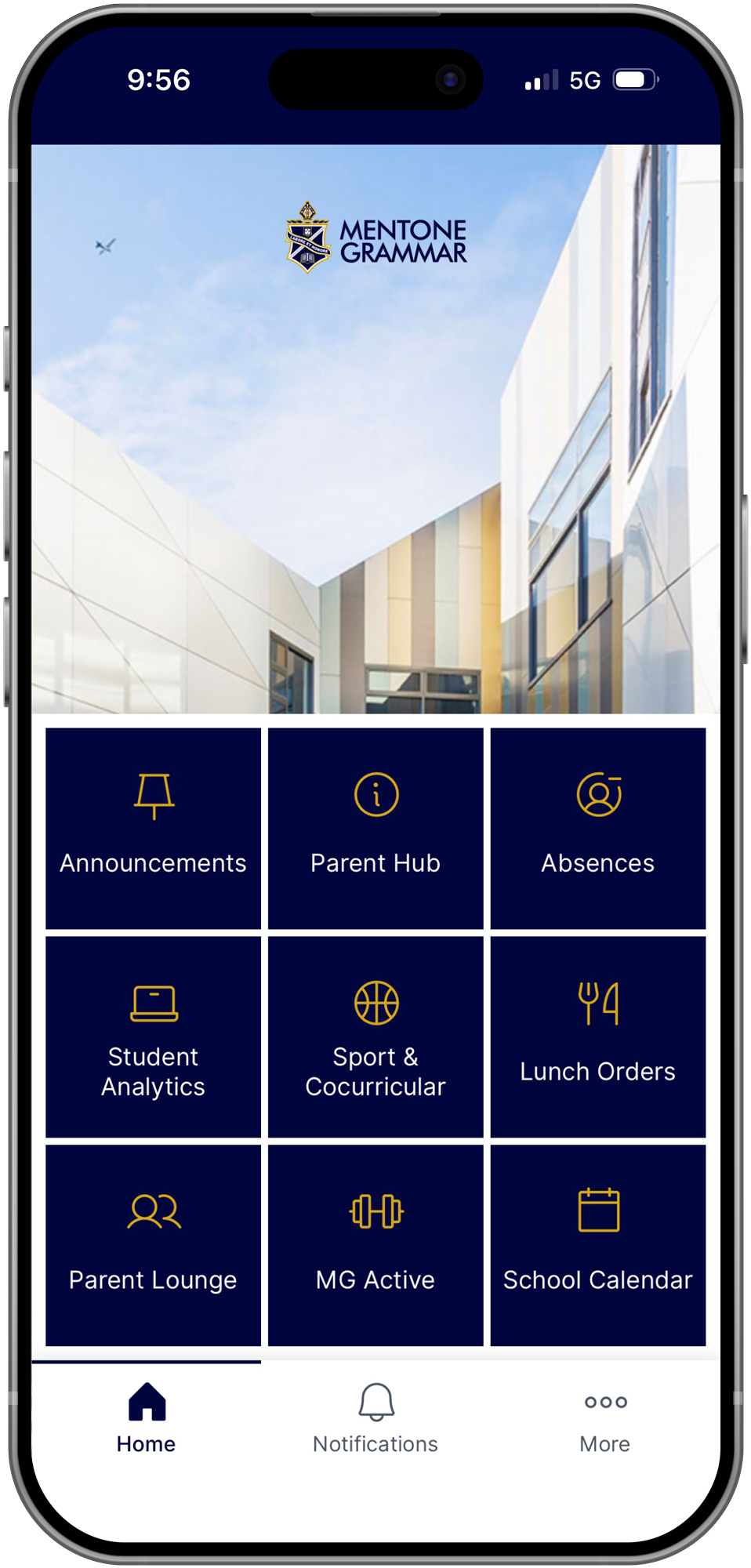
 The home screen offers quick access to key features of the app.
-
 Keep track of important alerts and updates sent via push notifications, such as sport fixture changes.
-
 Securely access a categorised list of resources, including service providers, parent resources, and other information.
FAQs
Search for “MyMentone” on the App Store (Apple) or Google Play (Android) to download and install the app.
Do I need to create a login to access the app? No, you can sign in using your existing Parent Code or linked social credentials. You will only need to do this on your first login or after 90 days of app inactivity.
You can manage your parent account password and link personal accounts by clicking here.
Your parent code can be found in the following locations on Parent Lounge:
Parent Details > Parent Details > Parent Code
Accounts & Payments > School Fees Account > Parent Code
It is also listed on your fee statements next to ‘ACCOUNT NUMBER’.
Please note that while newsletters and notices of a general nature will be delivered through the app, critical or personal messages – such as direct updates from teachers to parents, and targeted communications at a class or individual level – will continue to be communicated through our email system.
Yes, all parents/carers will be able to sign in using their existing Parent Code or linked social credentials.
The ‘Announcements’ section displays all school notices currently visible on the app. The ‘Notifications’ indicates all messages that have been sent via ‘push notification’.
Please note that all school communications sent through the MyMentone app are also sent via push notification.
Yes, you can do that by clicking here on your computer.
Yes, simply click on the event you’re interested in, then select the three dots in the top right corner. From there, choose ‘Add to Calendar’ and follow the prompts. You can also use this menu to ‘Share’ the event with family and friends.
Yes, MyMentone uses single sign-on (SSO) technology and best practice data encryption protocols to ensure secure access across our School platforms.
Enable automatic app updates in your device settings to ensure you’re always using the latest version of the MyMentone app.
Please ensure that ‘Allow push notifications’ is enabled in the app (More > Settings > Notifications) and that MyMentone app notifications are enabled in your general device settings.
If you are still experiencing issues with push notifications, please go through the steps listed in the ‘What do I do if I encounter a technical issue?‘ FAQ below.
If your app isn’t functioning properly, here are some steps you can take to troubleshoot the issue:
- Check for updates:Please make sure your device is running the latest versions of its operating system (iOS or Android) and the MyMentone app to ensure optimal performance.
- Check internet connection: Ensure your device has a stable internet connection.
- Restart the app: Close the app completely and then reopen it.
- Restart your device: Sometimes, restarting your device can resolve app issues.
- Reinstall the app: Uninstall the MyMentone app and then reinstall it from the App Store/Google Play.
- Contact support: If none of the above steps work, please contact ITAssist@mentonegrammar.net for assistance.