FITNESS GYM (S&C)

Students in Years 7 – 12 can take part in voluntary, school-supervised gym sessions each week during term time in the Fitness Gym (upstairs in the Sports Centre).

All Fitness Gym student sessions must now be booked via the MG Active app.

IMPORTANT – READ BEFORE YOU SIGN UP

  • Use the STUDENT NAME to sign up (i.e. the person using the gym)
  • Sign up using a parent mobile (parents manage bookings) OR use a student mobile (students manage bookings)
  • You must enter a mobile number
  • Separate sign up is required for each student (view STEP 7: Connected Accounts for multiple children) 
  • Sign up will require the student’s SCHOOL EMAIL ADDRESS ONLY
  • Do not use a parent/carer or personal email to set up the student profile

IMPORTANT: The Waiver of Liability MUST be signed by a parent/carer. If your child is using their own mobile – you will need to be with them to complete the Waiver.

Watch this short video on how to complete the sign up process or follow the instructions below.

STEP 1: Download app

Search for MG Active on the App Store or Google Play.

STEP 2: Sign Up
  1. On login page, click the Sign Up button (top right).
  2. On create account page, complete the user (student) details:
    1. Student First Name
    2. Student Surname
    3. Student Mentone Grammar Email (do not use a personal or parent email)
    4. Mobile – choose the correct option:
      1. If the parent is managing bookings, insert parent mobile.
      2. If the student is managing their own bookings, insert student mobile.
    5. Create a password (MUST be 8 characters including a lower case, upper case, number and symbol)
STEP 3: Verify Account

You will be asked to verify the account:

  1. Click on the Mobile number tab
  2. Click Send code
  3. Enter the code
  4. An account activation email from Xoda will also be sent to the student email – please make sure to verify the account via the link provided in the email.
STEP 4: Complete Waiver

Read and complete The Waiver of Liability – THIS MUST BE SIGNED BY A PARENT/CARER.

Check STEP 7 below if you are managing multiple students using the gym and want to connect accounts, you will need to add the relevant student names to each Waiver.

STEP 5: Turn On Notifications

When prompted toggle app notifications to ‘ON’. This is important to enable confirmations, waitlist notifications, and urgent messages such as class cancellations.

STEP 6: Select Student Year Level

All users must be tagged to a year level ‘Trial’ pack to manage bookings.

  1. Home screen click Select Student Year Level
  2. Membership page – click ‘Trials – Buy now’
  3. Select the relevant student Year Level
    • IMPORTANT: choose the correct year level as once confirmed you can’t change it
  4. Hit Purchase (no payment required)
  5. Accept the Terms & Conditions (please read)
  6. Confirm

You’re now ready to Book a Session… happy training!

STEP 7: Connected Accounts for Multiple Children

If you have more than one child using the Fitness Gym, and one parent is managing all bookings for all children on their mobile, the School will connect your accounts so you can toggle between children in the app to make individual bookings.

You will first need to log out of the app (Profile > Logout) and follow the sign up process above for each child using their unique school email and parent mobile.

At the end of each Waiver include the names of the children you want to connect – once the sign up process is completed for each child, the School will connect the accounts. You may need to refresh your app for changes to appear.

Watch this video to learn how to complete multiple sign ups using the same mobile device and how to toggle between students once the accounts are connected.

Chat Functionality

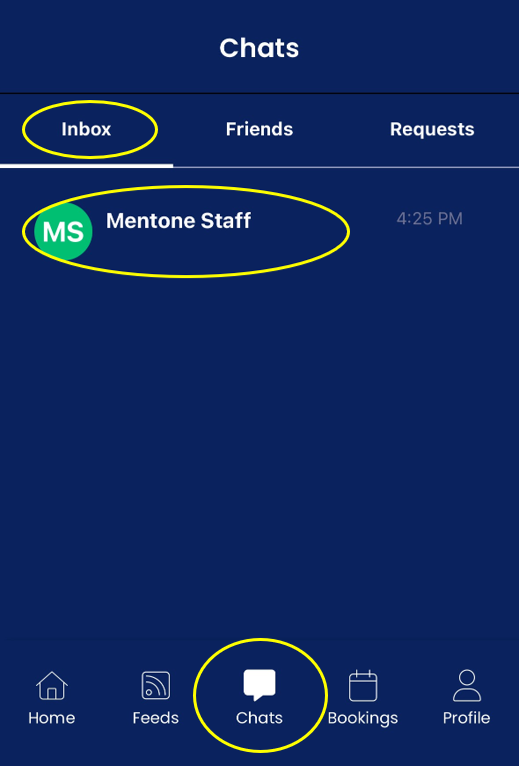
If you need to send an urgent message to gym staff e.g. to cancel a booking that falls outside the 12 hour cancellation period due to illness or injury, use the Chat functionality on the app.

  • Go to Chats icon (bottom of screen)
  • Select Inbox
  • Select Mentone Staff
  • Write message and send

Cancelling a Booking

If you need to cancel a booking for any reason, simply use the Cancel button beside any sessions you have booked.

Bookings must be cancelled at least 12 hours in advance to allow students on the waitlist the opportunity to attend.

If you need to cancel a booking outside the 12 hour cancellation period e.g. due to illness or injury, use the chat function outlined above.

App Terminology

This app has been developed for gyms and health clubs and adapted for Mentone Grammar. As a result, there are some naming conventions and references to payments that are not relevant for our School but cannot be removed or changed.

Please disregard these references. No payment is required at any time.
Program Overview

Fitness sessions are designed for students who wish to:

  • Improve their fitness, strength, and conditioning
  • Develop healthy training habits in a supervised, structured environment
  • Build confidence and learn correct technique while working towards personal fitness goals
Session Descriptions

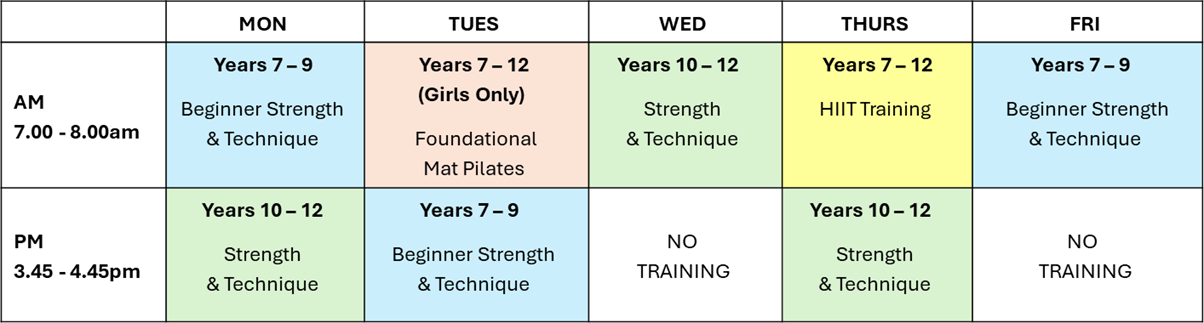
Beginner Strength & Technique (Years 7 – 9)
Introduces safe strength training with a focus on mobility, basic strength and correct technique. Uses bodyweight, light resistance, and low risk activities. Sessions include warm‑up, activation and supervised full‑body work, alternating upper/lower focus. Students follow a progressive program with individual adjustments.

Strength & Technique (Years 10 – 12)
A program for older students to build strength, athletic performance, and advanced techniques. Sessions include warm‑up, movement prep and supervised full‑body training, alternating upper/lower emphasis. Students participate in a progressive program tailored to individual goals.

HIIT Training (Years 7 – 12)
HIIT sessions combine cardio exercises with light resistance training for a fast‑paced, energetic workout. Students complete short intervals using bodyweight movements, cardio equipment and light weights, improving fitness, endurance and overall conditioning in a fun, varied environment.

Foundational Mat Pilates (Years 7 – 12: Girls Only)
Mat Pilates builds core stability, balance, mobility, and overall strength through controlled bodyweight exercises. This low‑impact, full‑body session supports posture, flexibility and injury prevention, and is suitable for all experience levels. Activities emphasise body awareness, control, and functional strength.

Session Structure & Capacity
  1. Each session has a maximum of 20 students to ensure safety and effective supervision. 
  2. Waitlists are managed via the MG Active app and students will be notified a minimum of 12 hours in advance if a place becomes available.
  3. There is no limit on the number of applicable sessions a student can attend each week.
  4. Sessions MUST be booked (and cancelled) via the MG Active app.
  5. Bookings must be cancelled at least 12 hours in advance.
  6. Students must arrive on time, and attendance will be marked by staff. Late arrivals or students attempting to join without a booking when the class is full will not be permitted. 
Supervision & Safety
  1. Each session is supervised by a qualified coach who holds basic First Aid certification
  2. No additional medical or specialised services are available during sessions. 
  3. Coaches may vary each week. 
  4. Students attending should be capable of independently managing any existing medical conditions and should have at least a moderate level of fitness
Student Wellbeing & Conduct

Staff will monitor student participation, engagement, and wellbeing.

If a student appears to be struggling physically, is unable to participate safely, is not following the conditions of use or the School’s Code of Conduct, or consistently cancels/fails to turn up, the School will contact the student and/or parents to discuss whether continued involvement is appropriate.

To find more information about the sport program, visit the Sport FAQs.